Bill Distribution
Overview
The Bill Distribution module allows agents to distribute bills to rate payers and print them in the field. An agent can print a bill in two formats and mark it as distributed once delivered to the rate payer.
Navigate to: Home → Quick Actions → Bill Distribution
Bill Distribution List
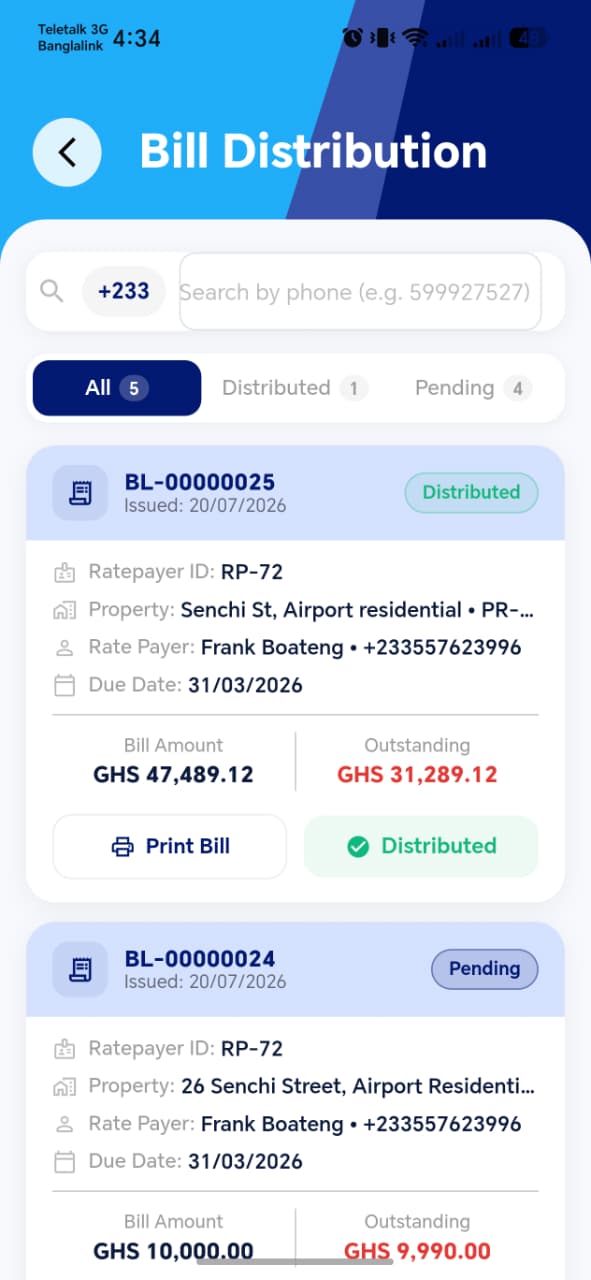
List Features
| Element | Description |
|---|---|
| Search bar | Search by rate payer phone number (e.g. +233 599927527) |
| All / Distributed / Pending tabs | Filter bills by distribution status with count badges |
| Bill card | Shows bill details, amounts, and action buttons |
Status Filter Tabs
| Tab | Count shown | Meaning |
|---|---|---|
| All | Total bills | Every bill assigned to the agent |
| Distributed | Count of distributed | Bills marked as delivered to rate payer |
| Pending | Count of pending | Bills not yet distributed |
Bill Card
Each card displays:
| Field | Description |
|---|---|
| Bill ID | Unique bill reference (e.g. BL-00000025) |
| Status badge | Distributed (green) or Pending (grey) |
| Issued date | Date bill was generated (e.g. 20/07/2026) |
| Ratepayer ID | e.g. RP-72 |
| Property | Property address and ID |
| Rate Payer | Name and phone number (e.g. Frank Boateng • +233557623996) |
| Due Date | Payment due date (e.g. 31/03/2026) |
| Bill Amount | Total bill amount in GHS |
| Outstanding | Remaining unpaid amount in red |
Bill Card Actions
Each card has two action buttons:
| Button | Action |
|---|---|
| Print Bill | Opens the print format selection dialog |
| Distributed / Mark Distributed | Marks the bill as delivered (green = already distributed) |
!!! info "Distributed Badge" Once a bill is marked as distributed, the action button turns green with a ✅ icon and shows Distributed. It cannot be undistributed.
Print Bill
Tapping Print Bill opens a format selection dialog.
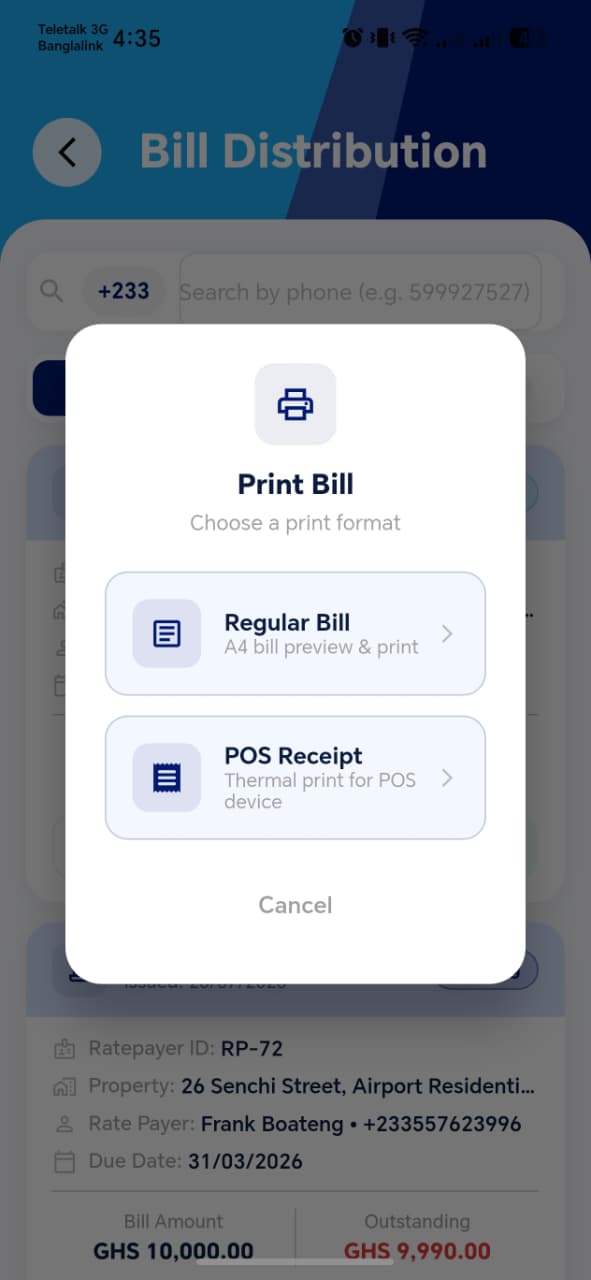
| Option | Description |
|---|---|
| Regular Bill | A4 bill preview and print — for standard printers |
| POS Receipt | Thermal print format — for Android POS devices in the field |
| Cancel | Dismiss without printing |
Regular Bill Preview
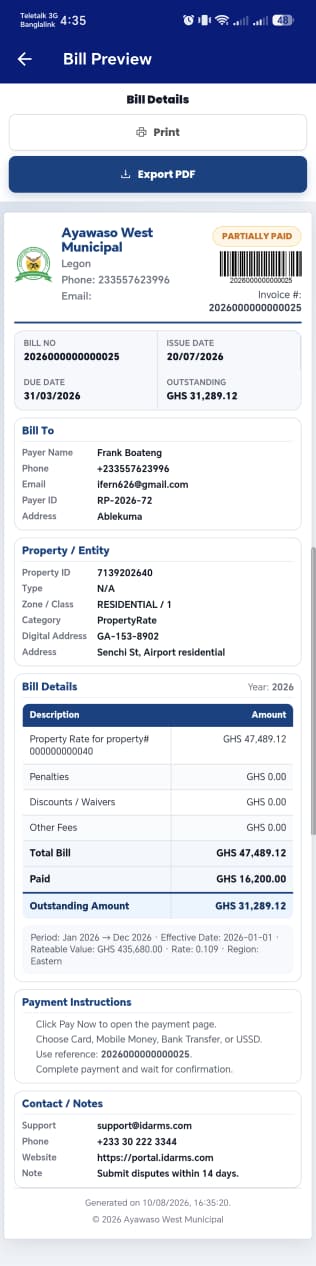
The Bill Preview screen shows a full A4-formatted bill with:
Header:
- Municipal council name, address, phone (e.g. Ayawaso West Municipal)
- Payment status badge (e.g. PARTIALLY PAID)
- Barcode and Invoice number
Bill Summary: | Field | Description | |---|---| | Bill No | Unique bill number | | Issue Date | When the bill was generated | | Due Date | Payment deadline | | Outstanding | Remaining amount due |
Bill To (Rate Payer Details):
| Field | Description |
|---|---|
| Payer Name | Full name |
| Phone | Contact number |
| Email | Email address |
| Payer ID | Rate payer ID (e.g. RP-2026-72) |
| Address | Physical address |
Property / Entity:
| Field | Description |
|---|---|
| Property ID | Unique property identifier |
| Type | Property type |
| Zone / Class | e.g. RESIDENTIAL / 1 |
| Category | e.g. PropertyRate |
| Digital Address | Ghana Post address |
| Address | Physical address |
Bill Details Table: | Item | Amount | |---|---| | Property Rate | GHS amount | | Penalties | GHS 0.00 if none | | Discounts / Waivers | GHS 0.00 if none | | Other Fees | GHS 0.00 if none | | Total Bill | Sum of all items | | Paid | Amount already paid | | Outstanding Amount | Total Bill − Paid |
Payment Instructions: Instructions on how to pay (card, mobile money, bank transfer, USSD) with the bill reference number.
Actions: | Button | Action | |---|---| | Print | Sends to connected printer | | Export PDF | Saves bill as a PDF file |
POS Receipt Preview

The POS Receipt is a compact thermal-print format for Android POS devices:
- Paper size: ISO C8 (thermal roll)
- Pages: 3 pages (bill details / amount breakdown / QR code)
- Contains: Municipal header, Bill No, Rate Payer details, property, due date, bill amount, paid, outstanding, and a QR code
- Footer: "This is an electronically generated bill. Printed on: [date]. Powered by iDARMS"
!!! tip "POS Device Printing" The POS receipt is designed for thermal printers connected to the agent's Android POS device. Make sure the POS device is paired via Bluetooth before tapping Print.
Mark as Distributed
After physically delivering the bill to the rate payer, the agent marks it as distributed directly from the bill card.
Tapping Mark Distributed (on a Pending bill) opens a confirmation popup with an optional note field. Confirming marks the bill as distributed.
!!! success "Expected Result"
The bill card status badge changes from Pending to Distributed (green ✅).
The bill moves to the Distributed tab and the count updates.
Test Suggestions
!!! tip "Filter Tab Test" Tap Distributed tab — verify only distributed bills appear. Tap Pending — verify only undistributed bills appear. Verify counts on each tab match the visible cards.
!!! tip "Search Test" Enter a rate payer's phone number in the search bar. Verify only bills belonging to that rate payer appear.
!!! tip "Print Format Test" Tap Print Bill on any bill card. Verify the dialog shows both Regular Bill and POS Receipt options. Tap Cancel and verify the dialog closes without printing.
!!! tip "Regular Bill Content Test" Open the Bill Preview for a known bill. Verify the Bill No, Rate Payer name, Due Date, Total Bill, Paid, and Outstanding amounts are all correct.
!!! tip "Mark Distributed Test"
Tap Mark Distributed on a Pending bill.
Confirm in the popup. Verify the button becomes green Distributed
and the bill moves to the Distributed tab.
!!! tip "Already Distributed Test" Tap the green Distributed button on an already-distributed bill. Verify it cannot be undone.