Pay Multiple
Overview
Lets a rate payer select several bills across their own properties and pay them together in a single transaction, with the option to pay each one fully or partially.
Navigate to: Home → Quick Actions → Pay Multiple
Multiple Bill Pay (List)
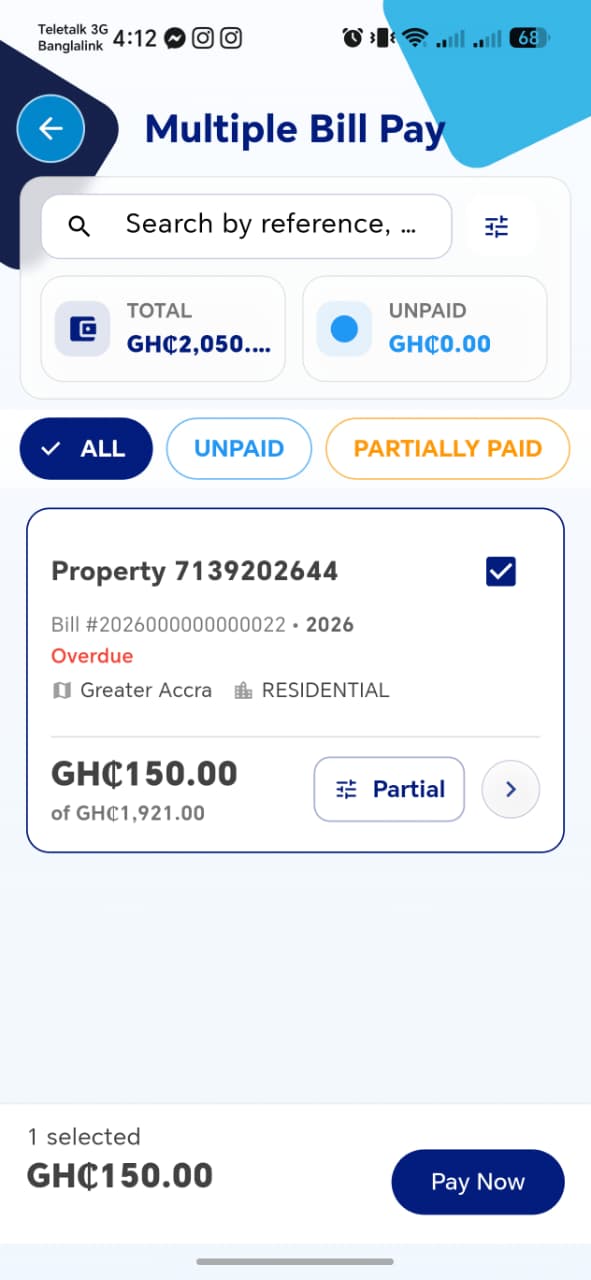
Same search, summary cards (TOTAL, UNPAID), and filter tabs (ALL,
UNPAID, PARTIALLY PAID) as My Bill.
Bill Row
| Field | Description |
|---|---|
| Checkbox | Selects this bill for the batch payment |
| Property | Property ID |
| Bill # / Year | |
| Overdue flag | Red, when past due |
| Region / Property Zone | |
| Amount | Shows the amount that will be paid for this bill, "of" the outstanding total, e.g. GH₵150.00 of GH₵1,921.00 |
| Partial button | Opens Adjust Amount for this specific bill |
| Chevron | Opens Bill Details for this bill |
A sticky bar at the bottom tracks the batch: "N selected", the running total, and a Pay Now button.
!!! tip "Things to check" - Selecting/deselecting a bill's checkbox updates the "N selected" count and running total immediately - Each bill defaults to its full outstanding amount when first checked, before any partial adjustment - Deselecting a bill after adjusting its partial amount resets or preserves that amount correctly on re-selection — confirm which is intended
Adjust Amount
Opened via the Partial button on a bill row — lets the rate payer pay less than the full outstanding amount for that specific bill within the batch.
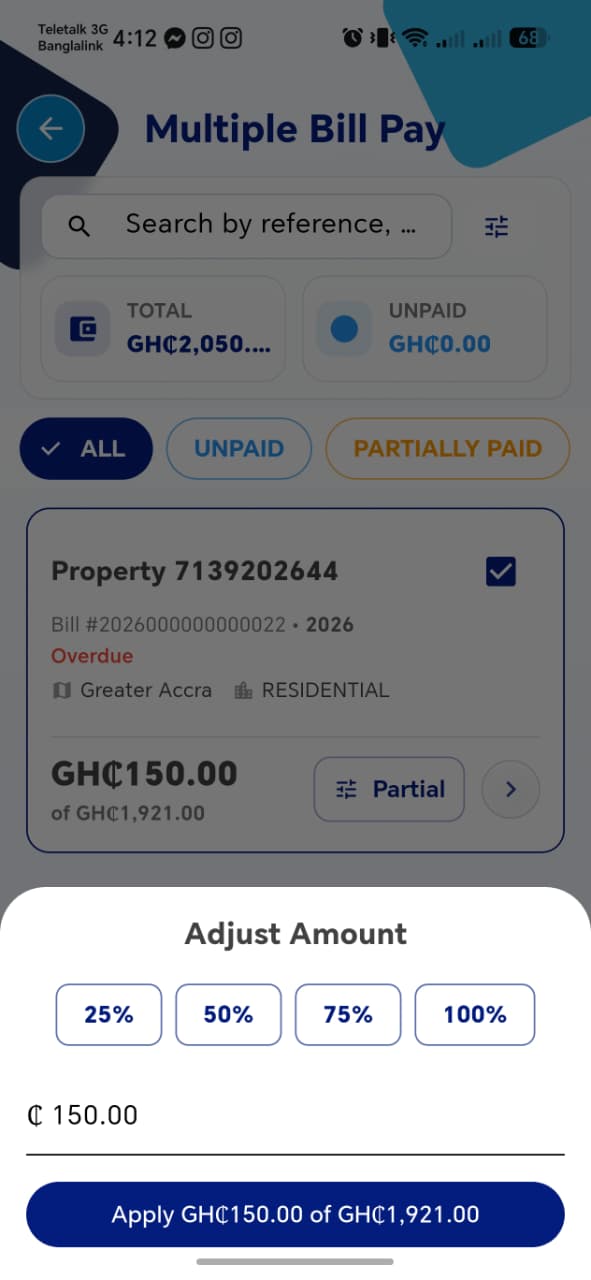
| Element | Description |
|---|---|
| Quick-select | 25%, 50%, 75%, 100% of that bill's outstanding amount |
| Custom amount field | Manual entry, overrides quick-select |
| Apply GH₵[amount] of GH₵[outstanding] | Confirms the amount for this bill and returns to the list |
!!! tip "Things to check" - Quick-select percentages calculate against that bill's outstanding amount, not the combined batch total - Entering a custom amount greater than the outstanding amount is blocked or handled sensibly - Applying an amount here correctly updates that bill's row and the batch running total on the list screen
Payment Success

Shown immediately after a successful payment.
| Field | Description |
|---|---|
| Amount paid | |
| Bill Number | |
| Reference No | Unique transaction reference |
| Ratepayer | |
| Payment Method | e.g. card |
| Paid On | Timestamp |
| Description | e.g. Property Rate for property#... |
Actions: View / Print Receipt, Share Link, Browser (opens the receipt in-browser).
!!! tip "Things to check" - The paid amount, bill, and outstanding balance all update correctly on My Bill and the property's Bill Summary right after payment - Reference No is unique per transaction, never reused - Share Link produces a link that actually opens the receipt for someone without being logged in
Payment Summary
Reached via Pay Now on the list. Shows a consolidated breakdown before the actual payment is made.
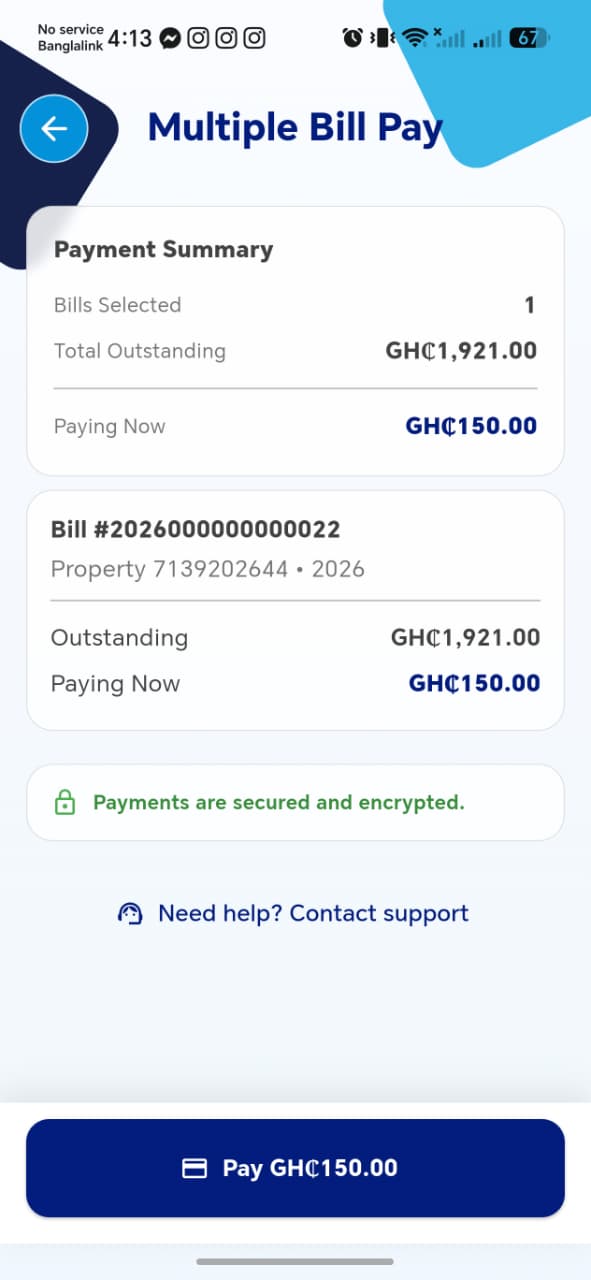
| Field | Description |
|---|---|
| Bills Selected | Count |
| Total Outstanding | Sum of outstanding amounts across all selected bills |
| Paying Now | Sum of amounts actually being paid (may be less than Total Outstanding if any are partial) |
Below that, each selected bill is listed individually with its own Outstanding and Paying Now amounts. A Pay GH₵[total] button at the bottom completes the transaction, alongside the same "secured and encrypted" note and support link seen on Bill Pay.
!!! tip "Things to check"
- Paying Now at the top always equals the sum of every bill's individual Paying Now amount below it
- With multiple bills selected (this screenshot only shows one — worth testing with 2+), each bill's amount is itemized correctly and none get dropped or duplicated
- The final Pay button amount matches Paying Now, not Total Outstanding
Bill Details
Same bottom sheet as Pay for Others → Bill Details — status badge, outstanding amount, View / Print Bill, and full Bill Information (Property Number, Ratepayer, Region, Property Zone, Charge Type, Description, Bill Year, Due Date). This version also shows Paid At, since the bill already has a partial payment on record.

!!! tip "Things to check" - Paid At only appears once a partial payment actually exists for that bill - Tapping Pay Now from here behaves consistently with checking the box and using the main Pay Now flow — confirm it doesn't create two different payment paths with different outcomes