Home Dashboard
Overview
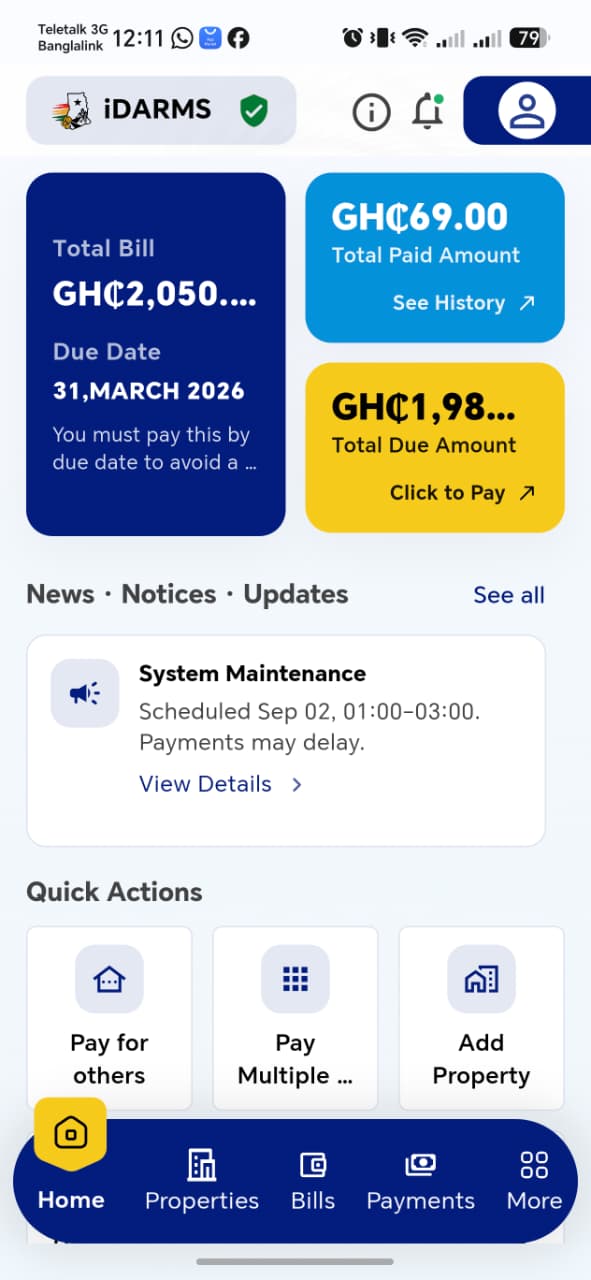
The Home screen is the landing page after login. It gives the Rate Payer an at-a-glance view of their total bill amount, outstanding amount, what they've paid, and quick access to the most common actions.
First-Time Walkthrough
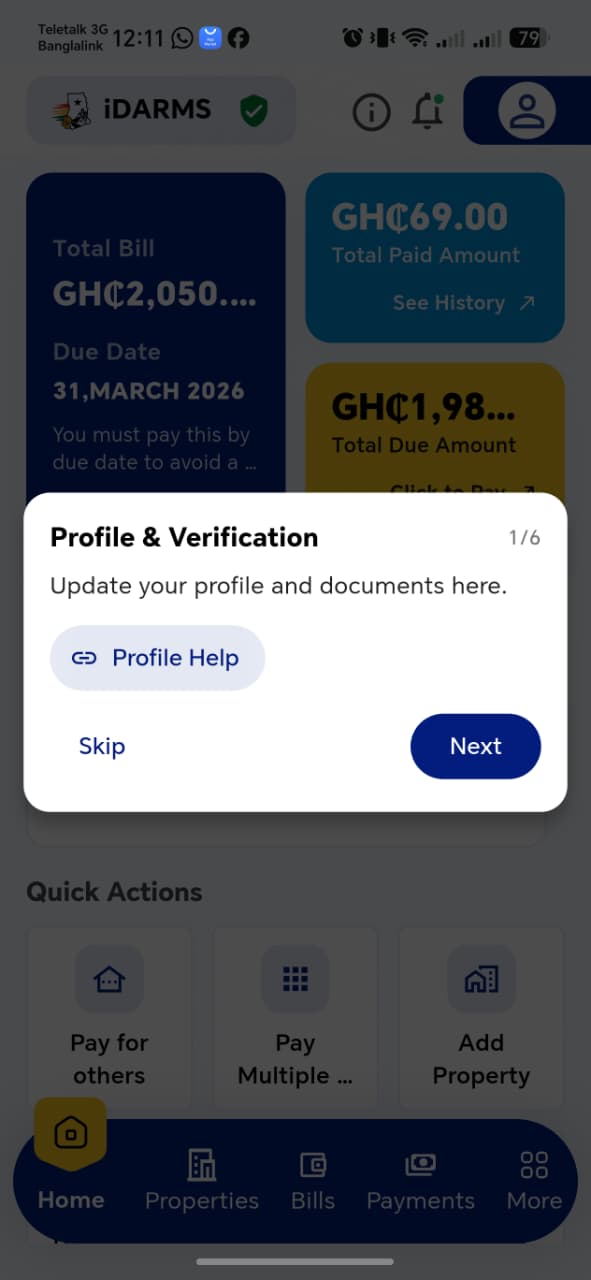
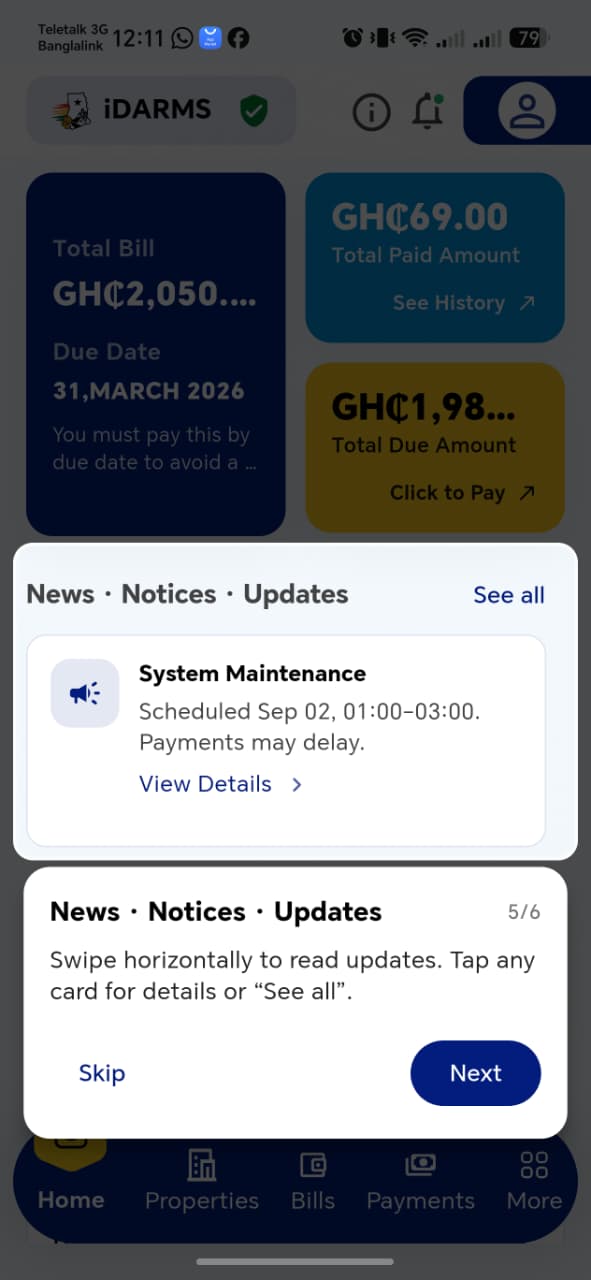
New users are shown a 6-step guided tour of the dashboard the first time they land here, highlighting each area in sequence:
| Step | Highlights | Message |
|---|---|---|
| 1/6 | Profile & Verification | Update your profile and documents here. |
| 2/6 | Next Due Date (Total Bill card) | Tap for details or to pay now and avoid penalties. |
| 3/6 | Total Paid (This Year) | Your total payments this year. Tap to view payment history and receipts. |
| 4/6 | Total Due (This Year) | Your outstanding amount. Tap "Click to Pay" to select properties and pay securely. |
| 5/6 | News · Notices · Updates | Swipe horizontally to read updates. Tap any card for details or "See all". |
| 6/6 | Quick Actions | Shortcuts for Pay Now, Link Property, Scan & Pay, and more. |
Each step can be Skipped or advanced with Next; the final step shows Done instead.



!!! tip "Things to check"
- The walkthrough only appears on first login (or after it's reset), not on every login
- Skip at any step dismisses the whole tour, not just the current step
- Each highlighted element on the walkthrough matches what it's pointing at
- Step counter (e.g. 3/6) increments correctly and matches the actual number of steps
Navigate to: Login → Home
Header
| Element | Description |
|---|---|
| iDARMS logo + verified badge | App identity, green check = system verified/secure |
| Info icon | General app information |
| Notification bell | Shows a green dot when there are unread notifications |
| Profile avatar | Opens the user's profile |
Summary Cards
Three cards summarize the rate payer's bill status:
| Card | Description |
|---|---|
| Total Bill (dark blue) | Total billed amount and the upcoming due date, with a warning about penalties for late payment |
| Total Paid Amount (blue) | Sum paid so far this year, with a See History link |
| Total Due Amount (yellow) | Outstanding balance, with a Click to Pay link |
!!! info "Live values" All three cards should update immediately after a payment is made or a new bill is issued — confirm the numbers stay in sync (Total Bill ≈ Total Paid + Total Due).
News · Notices · Updates
A horizontally-swipeable set of cards for announcements (e.g. scheduled maintenance windows), each with a View Details link. A See all link in the section header opens the full list.
Quick Actions
| Action | Description |
|---|---|
| Pay for others | Pay a bill on behalf of another property owner or rate payer |
| Pay Multiple | Pay bills for more than one property in a single transaction |
| Add Property | Start the property registration flow (see Add Property) |
| Download Receipt | Download a payment receipt |
| Raise Dispute | Report an issue with a bill or property record |
| Contact Support | Reach customer support |