Ratepayer List & Details
Overview
The Rate Payers screen displays all rate payers registered by the agent. Each rate payer is either an Individual or an Organisation, and can have one or more properties linked to their profile.
Navigate to: Bottom Navigation → Rate Payers
Ratepayer List
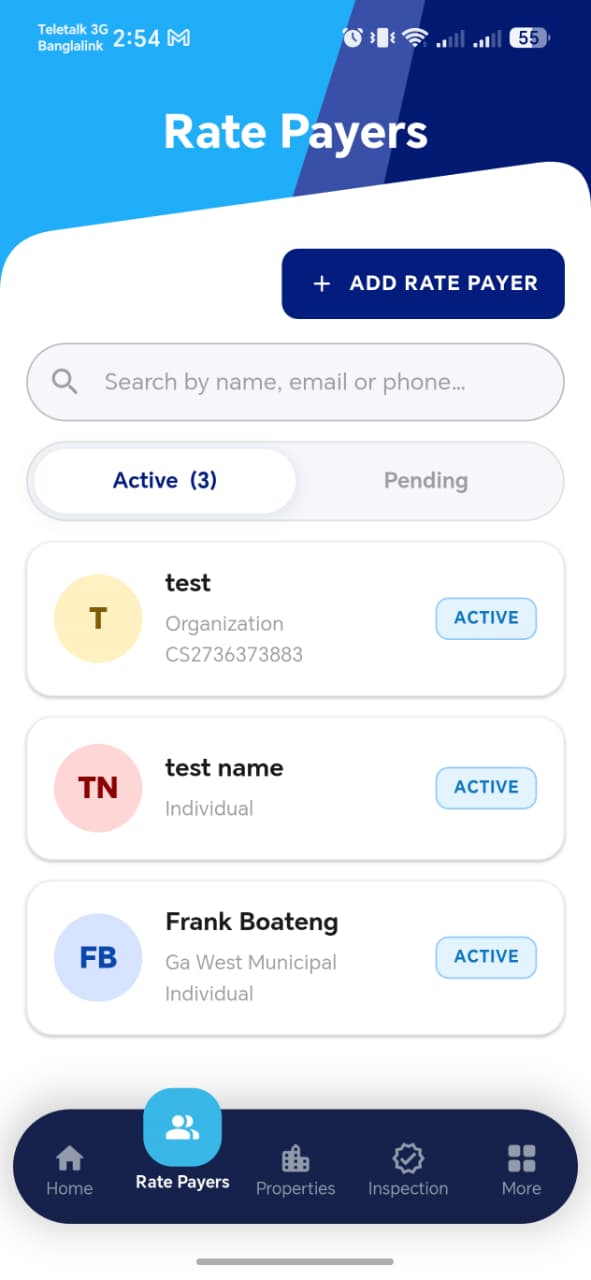
List Features
| Element | Description |
|---|---|
| + ADD RATE PAYER | Button to register a new rate payer (Individual or Organisation) |
| Search bar | Search by name, email, or phone number |
| Active / Pending tabs | Toggle between active and pending rate payers |
| Rate payer card | Shows avatar initials, name, type, registration number, and status badge |
Active vs Pending Tab
| Tab | Description |
|---|---|
| Active | Rate payers whose accounts are verified and fully set up |
| Pending | Rate payers whose OTP verification or account setup is incomplete |
Rate Payer Card
Each card in the list shows:
- Avatar — auto-generated initials with a colour indicator
- Name — full name or organisation name
- Type —
IndividualorOrganisation, with MMDA name if applicable - Registration No. — unique identifier (e.g.
CS2736373883) - Status badge —
ACTIVEorPENDING
!!! tip "Search Tips" Use the search bar to quickly find a rate payer by:
- Full or partial **name**
- **Email address**
- **Phone number**
Ratepayer Detail Page
Tapping any rate payer card opens their full detail page. The detail page is scrollable and divided into the following sections.
Header Card
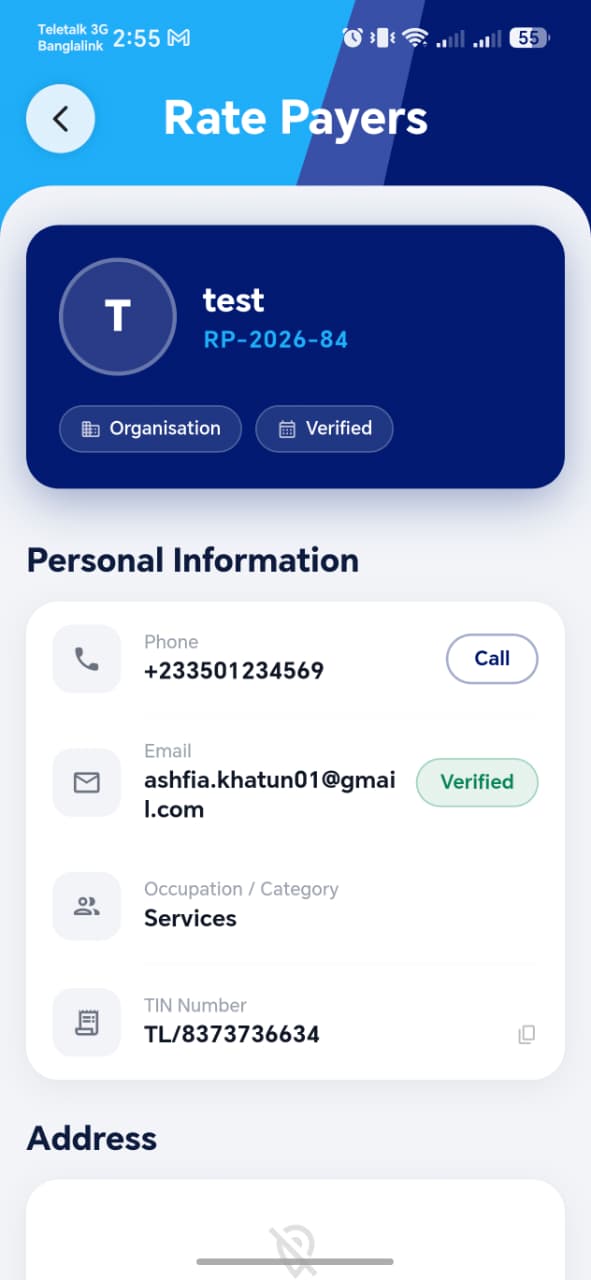
The dark blue header card at the top of the detail page shows:
| Element | Description |
|---|---|
| Avatar | Initials of the rate payer |
| Name | Full name or organisation name |
| Rate Payer ID | Unique system-assigned ID (e.g. RP-2026-84) |
| Type badge | Organisation or Individual |
| Verified badge | Confirms the rate payer's account has been OTP-verified |
!!! info "Rate Payer ID Format"
The ID follows the format RP-YYYY-XX where YYYY is the year
of registration and XX is the sequential number.
Personal Information Section
Displays contact and identification details for the rate payer.
| Field | Description |
|---|---|
| Phone | Contact phone number with a Call button to dial directly |
Email address with a Verified badge if OTP-confirmed |
|
| Occupation / Category | The sector or category of this rate payer (e.g. Services) |
| TIN Number | Tax Identification Number — tap the copy icon to copy |
Organisation Details Section
Visible only for Organisation type rate payers.
| Field | Description |
|---|---|
| Organisation Name | Registered name of the organisation |
| Type | Organisation type (e.g. Company) |
| Reg. No. | Registration number (e.g. CS2736373883) — tap the copy icon to copy |
| Rep. Phone | Representative's phone number |
Address Section
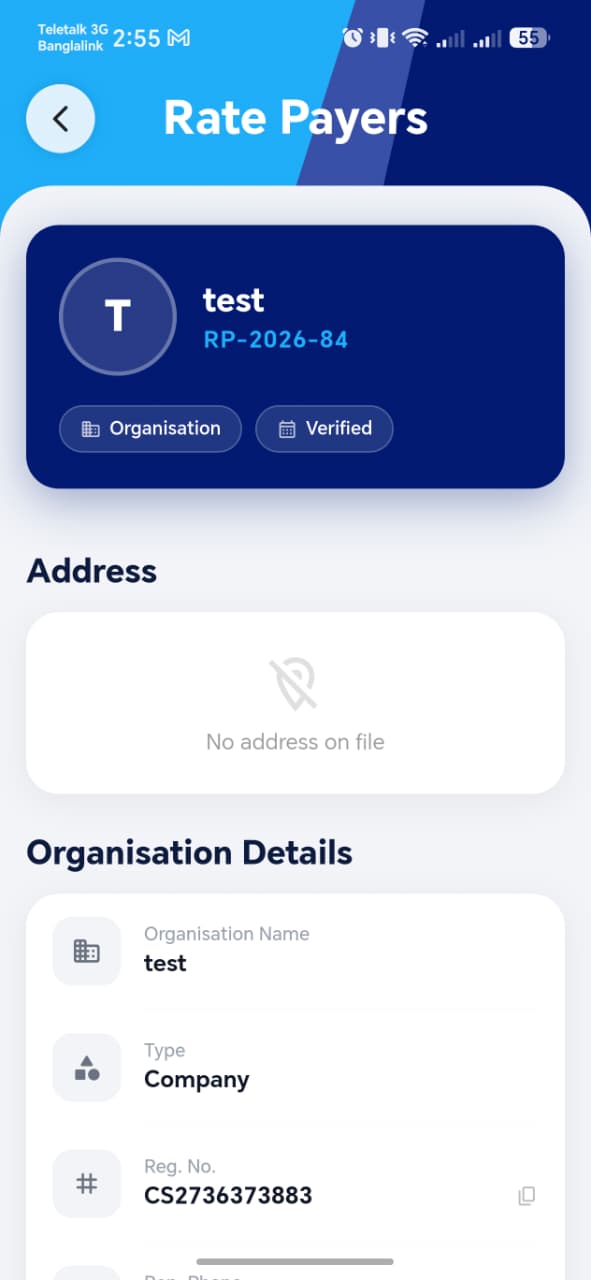

Displays the physical address associated with this rate payer.
| State | Display |
|---|---|
| Address available | Full address is shown |
| No address recorded | Shows No address on file with a location-off icon |
!!! info "Verified Badge"
The green Verified badge next to the email address confirms
the rate payer completed OTP verification during registration.
Unverified emails will not show this badge.
!!! tip "Quick Call" Tap the Call button next to the phone number to immediately dial the rate payer from your device.
Properties Section
Displayed at the bottom of the detail page, this section lists all properties linked to this rate payer.
| State | Display |
|---|---|
| Properties exist | List of linked property cards |
| No properties yet | Shows No properties linked yet with a property icon |
!!! tip "Linking Properties" Properties are linked to a rate payer during the Add Property workflow (Step 1 — Select Rate Payer). A rate payer with no properties should have at least one property added before bill distribution can occur.
Rate Payer Types — Quick Reference
| Individual | Organisation | |
|---|---|---|
| Registration fields | Personal ID, Name, DOB, Gender | Org Name, Type, Trade License / TIN |
| ID verification | Ghana Card / Passport / Voter ID / Driving License | Trade License / TIN No. |
| Detail page sections | Personal Information, Address, Properties | Organisation Details, Address, Properties |
| Representative field | N/A | Representative Name + Designation |
Test Suggestions
!!! tip "Search Test" Search for a rate payer by name, then by phone number, then by email. Verify the correct record appears each time.
!!! tip "Active / Pending Tab Test" Register a new rate payer but do not complete OTP verification. Verify they appear under the Pending tab, not Active.
!!! tip "Verified Badge Test"
Complete the full registration of a rate payer including OTP
verification. Open their detail page and verify the
Verified badge appears next to the email.
!!! tip "Copy Field Test" On the detail page, tap the copy icon next to Reg. No. or TIN Number. Paste into another app and verify the value copied correctly.
!!! tip "No Properties State Test"
Open a newly registered rate payer who has no properties.
Verify the Properties section shows No properties linked yet.
!!! tip "Call Button Test" Tap the Call button on a rate payer's detail page. Verify the device's phone dialer opens with the correct number pre-filled.
!!! tip "Property Link Test" Add a property and link it to an existing rate payer. Open that rate payer's detail page and verify the property appears in the Properties section.