Add Property
Overview
The Add Property flow lets a rate payer register a new property under their account. It's a 4-step wizard: Property Info → Location & GIS → Documents → Review. A progress tracker at the top shows the current step, with completed steps marked with a check.
Navigate to: Home → Quick Actions → Add Property or Properties → Add Property
Step 1: Property Info
| Field | Description |
|---|---|
| Property Name | Display name for the property |
| Ownership Type | e.g. Single or Multiple |
| Land Size | Property area, in sq. m. |
Send a screenshot of this step and I'll fill in the exact fields, input types, and validation.
Step 2: Location & GIS
Captures the property's address and geographic details.
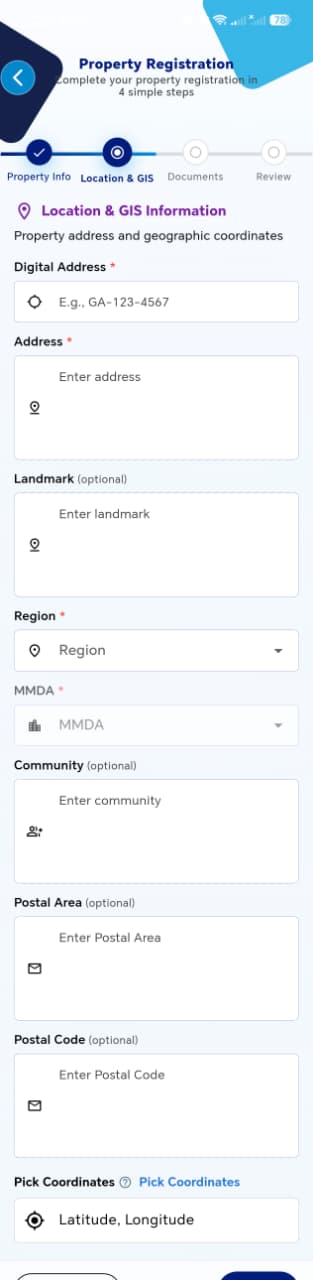
| Field | Required | Description |
|---|---|---|
| Digital Address | Yes | Ghana Post digital address, e.g. GA-123-4567 |
| Address | Yes | Free-text address, with a location/pin icon |
| Landmark | No | Nearby landmark to help locate the property |
| Region | Yes | Dropdown |
| MMDA | Yes | Dropdown — Metropolitan/Municipal/District Assembly, likely dependent on selected Region |
| Community | No | Free text |
| Postal Area | No | Free text |
| Postal Code | No | Free text |
| Pick Coordinates | No | Opens a picker to set Latitude/Longitude |
!!! tip "Things to check" - MMDA options change correctly based on the selected Region (if dependent) - Digital Address format is validated (e.g. rejects an obviously malformed value) - Pick Coordinates correctly populates the Latitude/Longitude field - Required fields (Digital Address, Address, Region, MMDA) block Next until filled - Optional fields can be skipped without blocking progress
Step 3: Documents
Collects property photos and ownership documents.
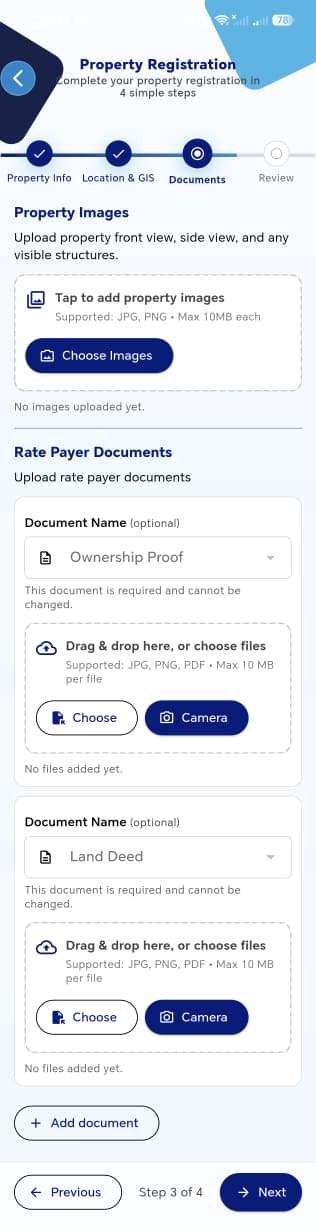
Property Images
- Choose Images button — upload front view, side view, and any visible structures
- Supported formats: JPG, PNG — max 10MB each
- Shows "No images uploaded yet" until at least one image is added
Rate Payer Documents
Each document block has:
- A Document Name dropdown — the two shown are Ownership Proof and Land Deed, both marked "This document is required and cannot be changed"
- Upload via drag & drop, Choose (file picker), or Camera
- Supported formats: JPG, PNG, PDF — max 10MB per file
- A + Add document button to attach additional document types beyond the two required ones
!!! tip "Things to check"
- Image upload rejects files over 10MB and unsupported formats, with a clear error
- Both required documents (Ownership Proof, Land Deed) must be uploaded before proceeding — confirm whether Next is actually blocked without them, since the Review step below shows it's possible to reach Review with 0 file(s) for all three
- Camera capture works and the resulting photo attaches correctly
- + Add document lets you attach a document type beyond the two defaults, and it carries through to Review
Step 4: Review
Summarizes everything entered across the previous three steps for a final check before submission.
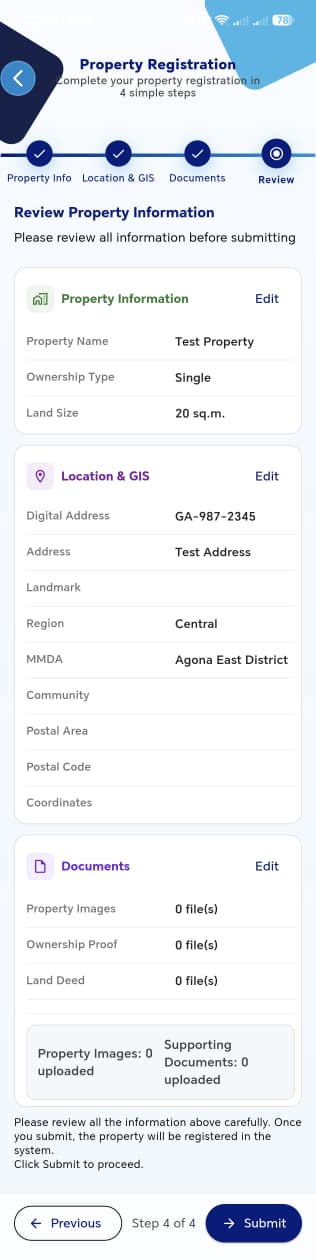
Each section (Property Information, Location & GIS, Documents) has its own Edit link that jumps back to that step without losing data from the other steps.
| Section | Shows |
|---|---|
| Property Information | Property Name, Ownership Type, Land Size |
| Location & GIS | Digital Address, Address, Landmark, Region, MMDA, Community, Postal Area, Postal Code, Coordinates |
| Documents | File count for Property Images, Ownership Proof, Land Deed |
Tapping Submit registers the property in the system.
!!! tip "Things to check" - Edit on each section returns to the correct step, and changes made there are reflected back on Review - All entered values (including ones left blank) display accurately — blank optional fields should show as empty, not stale/wrong data - Previous navigates back a step without losing entered data - Submit is disabled or shows a clear error if required data is actually missing
Submission Result
After tapping Submit, a success message confirms the property was added and explains that an agent will follow up to complete verification. The new property immediately appears in My Properties with a Pending status.
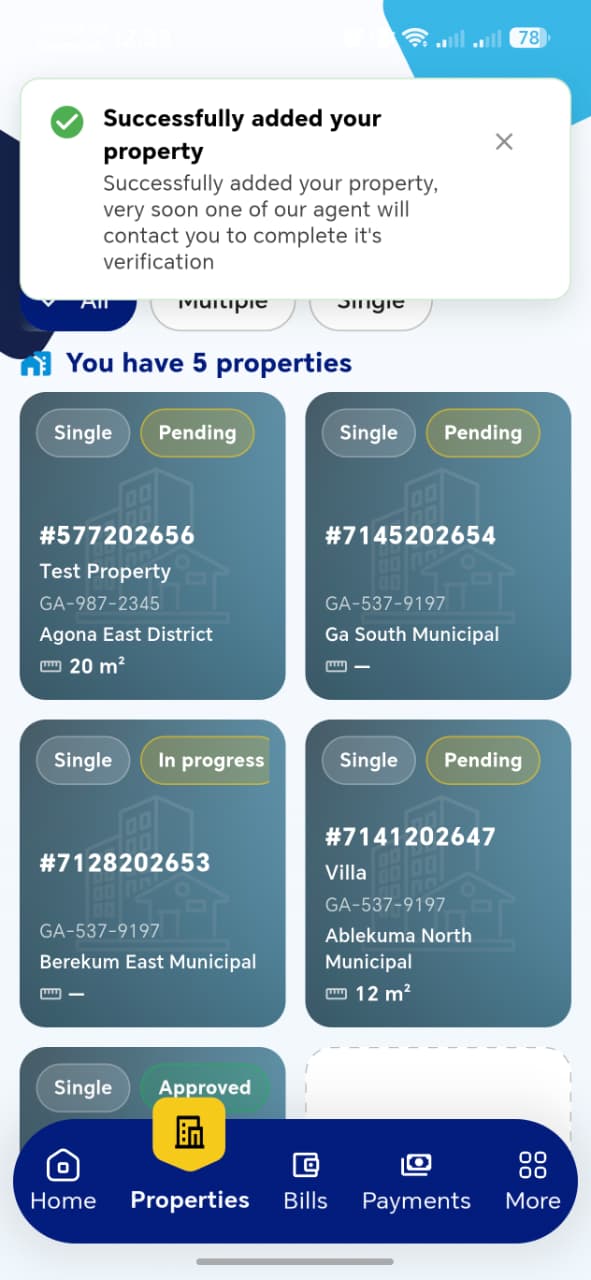
!!! info "Verify after submission"
- The new property appears in the list immediately, without needing a manual refresh
- It starts with status Pending and the correct ownership type badge (Single/Multiple)
- The property ID shown in the list is unique and correctly generated
- Property details (name, digital address, MMDA, land size) match exactly what was entered