Dashboard (Home)
Overview
The agent's landing screen after login — a snapshot of their overall stats, today's field activity, quick access to core workflows, and a feed of recent activity.
Navigate to: Login → Home
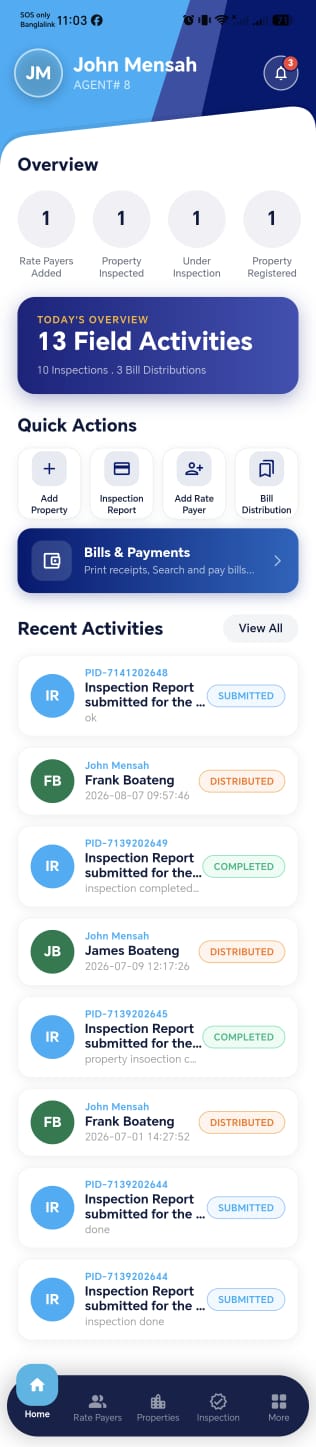
Header
| Element | Description |
|---|---|
| Agent name & ID | e.g. John Mensah, AGENT# 8 |
| Notification bell | Badge shows unread count, e.g. 3 — opens Notifications |
Overview
Four cumulative, not clickable, stat tiles:
| Stat | Description |
|---|---|
| Rate Payers Added | Total rate payers this agent has registered |
| Property Inspected | Total properties fully inspected |
| Under Inspection | Properties inspection has started on but not completed |
| Property Registered | Total properties this agent has registered |
!!! tip "Things to check" - Confirm these tiles are genuinely non-interactive (per spec) — tapping shouldn't navigate anywhere - Each count updates promptly after the relevant action (e.g. Property Registered increments right after a successful Add Property submission)
Today's Overview
A banner summarizing the day's field activity: "N Field Activities", broken down as "X Inspections · Y Bill Distributions".
!!! tip "Things to check"
- N Field Activities always equals X + Y (Inspections + Bill Distributions) — confirm no other activity types silently count toward this total without being reflected in the breakdown
- The count resets at the start of each new day, not a rolling 24 hours
Quick Actions
| Action | Destination |
|---|---|
| Add Property | Add Property wizard |
| Inspection Report | List of the agent's completed inspections — tapping one opens Inspection Details (report, recorded changes, rate payer info, images/documents) |
| Add Rate Payer | Rate payer type selection → Individual or Company |
| Bill Distribution | Bill Distribution list |
!!! tip "Things to check" - Inspection Report only lists inspections completed by this agent, not the whole team - Search on the Inspection Report list correctly matches by property/rate payer identifiers
Bills & Payments
A dedicated, larger button below Quick Actions — visually distinct since it's a primary workflow, not just another quick action. Leads to Bills & Payments.
Recent Activities
A preview list on the dashboard, with a View All link opening the full Recent Activities page (split into Inspection Log and Bill Distribution Log tabs/filters).
Activity Card
| Field | Description |
|---|---|
| Icon | Colour-coded avatar — initials for a person (e.g. rate payer), or a document icon for a report |
| Reference | Property ID (e.g. PID-7141202648) for inspections, or the agent/rate payer name for distributions |
| Title | e.g. "Inspection Report submitted for the ..." or the rate payer's name |
| Status badge | e.g. SUBMITTED (blue), DISTRIBUTED (orange), COMPLETED (green) |
| Subtext | Timestamp or short note (e.g. an inspection note, or a distribution date/time) |
!!! tip "Things to check"
- Status badges (SUBMITTED / DISTRIBUTED / COMPLETED) consistently mean the same thing here as they do in Inspection Report and Bill Distribution — no mismatched terminology between the dashboard preview and the full pages
- View All correctly splits into Inspection Log vs. Bill Distribution Log, and each tab only shows its own activity type
- Tapping an activity card opens the correct underlying record (a specific inspection or a specific bill)
Notifications
Tapping the bell icon opens Notifications.
| Behavior | Description |
|---|---|
| Notifications off | Agent can enable them from this screen |
| Notifications already on | Cannot be disabled from this screen (per spec) |
| Notification list | Tapping a notification navigates to its related record (e.g. a specific bill or inspection) |
!!! tip "Things to check" - Confirm there's genuinely no way to turn notifications off in-app, and that this is intentional (vs. expecting the agent to use OS-level settings) - Each notification deep-links to the correct record, not just a generic list screen - Unread badge count on the bell icon matches the actual number of unread notifications inside