Forgot Password
Overview
Lets an agent reset their password via an OTP sent to their registered phone or email.
Navigate to: Login → Forgot Password?
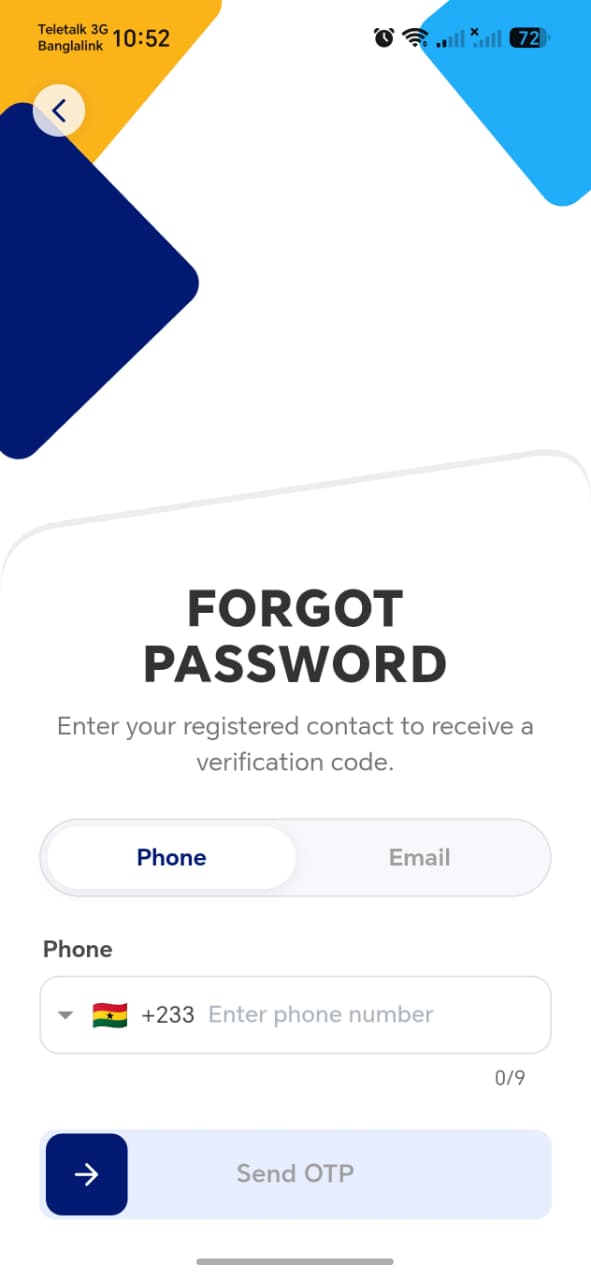
| Element | Description |
|---|---|
| Phone / Email toggle | Switches which contact method is used to receive the OTP |
| Phone field | Country code selector (defaults +233) + number, with a live character counter (e.g. 0/9) |
| Send OTP | Disabled until the field is validly filled |
Full Flow
Per the functional spec, the complete flow is:
- Agent taps Forgot Password.
- Chooses Phone or Email, enters the contact detail (this screen).
- Receives and enters the OTP to verify.
- Sets a new password.
Only step 2 is captured in screenshots so far — the OTP entry and new-password screens still need to be documented.
!!! tip "Things to check"
- Send OTP stays disabled until the phone number reaches the expected length (0/9 counter suggests exactly 9 digits after the country code)
- Switching from Phone to Email correctly swaps the input type and validation
- An unregistered phone/email shows a clear error rather than silently "succeeding"
- The OTP screen and new-password screen need their own screenshots — send those next if you have them, so this page can cover the whole flow instead of just the entry point