Registration (Sign Up)
Overview
New users register as either an Individual Rate Payer or a Company/Organization. Each path is a 2-step wizard ending in account creation.
Navigate to: Login → Sign Up
Choose Registration Type
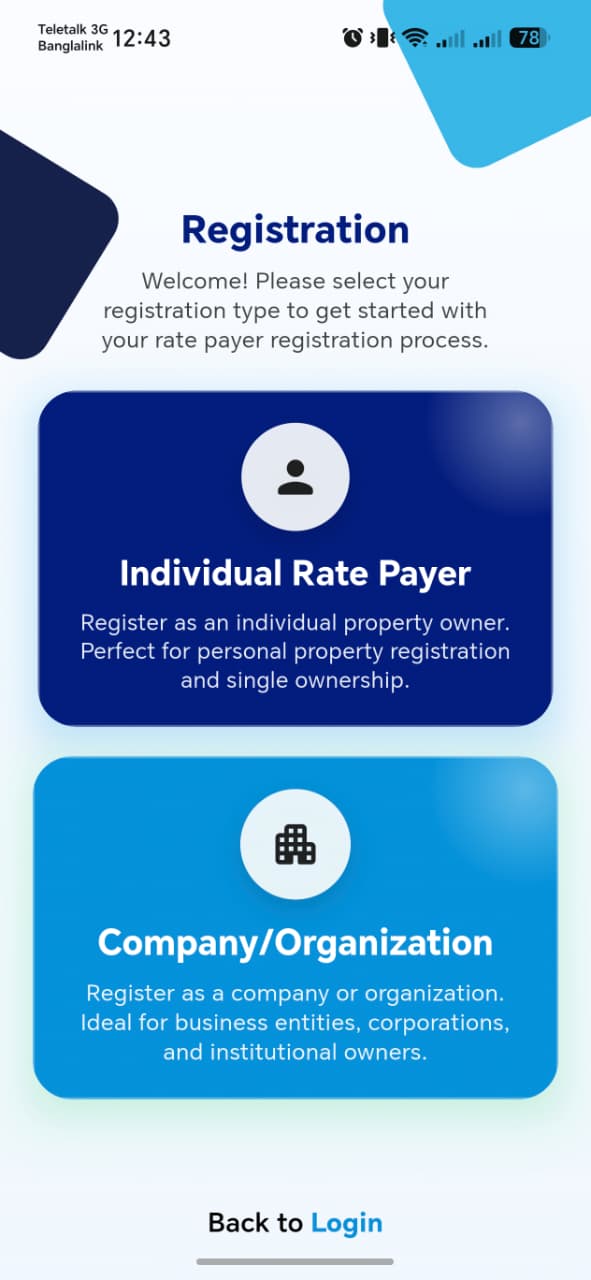
| Option | Description |
|---|---|
| Individual Rate Payer | For personal property registration and single or multiple ownership |
| Company/Organization | For business entities, corporations, and institutional rate payers |
A Back to Login link sits at the bottom for users who already have an account.
!!! tip "Things to check" Each card routes to the correct wizard, and the choice made here can't be silently mixed up later (e.g. an Individual signup shouldn't end up asking for a TIN Number).
Path A: Individual Rate Payer
Step 1: Personal Info

A toggle at the top switches between Enter manually and Autofill (National ID).
| Field | Required | Notes |
|---|---|---|
| First Name | Yes | |
| Middle Name | No | |
| Surname | Yes | |
| Identification Type | Yes | Dropdown, defaults to Ghana Card |
| ID Number | Yes | Placeholder format GHA-XXXXXXXXX-X |
| Date of Birth | No | Date picker |
| Gender | No | Dropdown |
!!! tip "Things to check" - Autofill (National ID) correctly pulls and populates the form — worth confirming what happens if the ID lookup fails - ID Number format is validated against the pattern shown in the placeholder - Marking Identification Type as something other than Ghana Card updates the ID Number placeholder/format accordingly, if applicable
Step 2: Contact Info & Account Setup
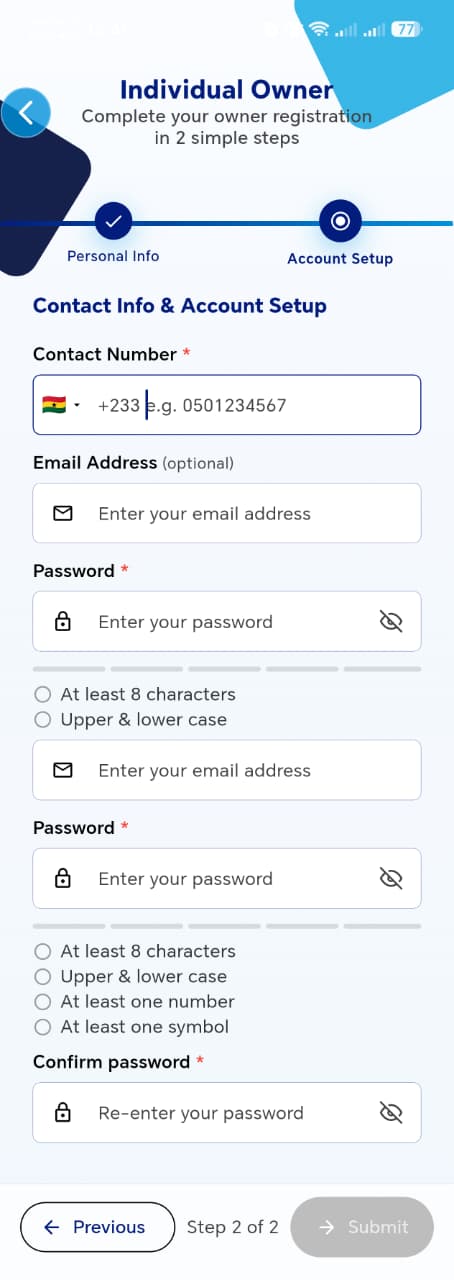
| Field | Required | Notes |
|---|---|---|
| Contact Number | Yes | Country code selector (defaults +233 Ghana) + number |
| Email Address | No | |
| Password | Yes | Strength meter; requirements shown: at least 8 characters, upper & lower case, at least one number, at least one symbol |
| Confirm Password | Yes | Must match Password |
Submit stays disabled until all required fields and password rules are satisfied.
!!! tip "Things to check" - Password strength meter updates live as the user types, and all 4 rules are enforced (not just displayed) - Confirm Password flags a mismatch before Submit is attempted - Submit is genuinely disabled (not just visually greyed) until the form is valid - Successful submission logs the user in / moves them to the expected next screen (e.g. login, or straight into the app)
Path B: Company / Organization
Step 1: Organization Info

| Field | Required | Notes |
|---|---|---|
| Organization Name | Yes | Legal name |
| Organization Type | Yes | Dropdown |
| Registration No | Yes | e.g. CS123456789 or BN0001234... |
| TIN Number | Yes | e.g. TL/AMA/2024/012345 |
| Sector / Category | Yes | Dropdown |
!!! tip "Things to check" - Registration No and TIN Number formats are validated, not free-text accepted as-is - Organization Type and Sector / Category dropdown options make sense together (no mismatched combinations)
Step 2: Account Setup
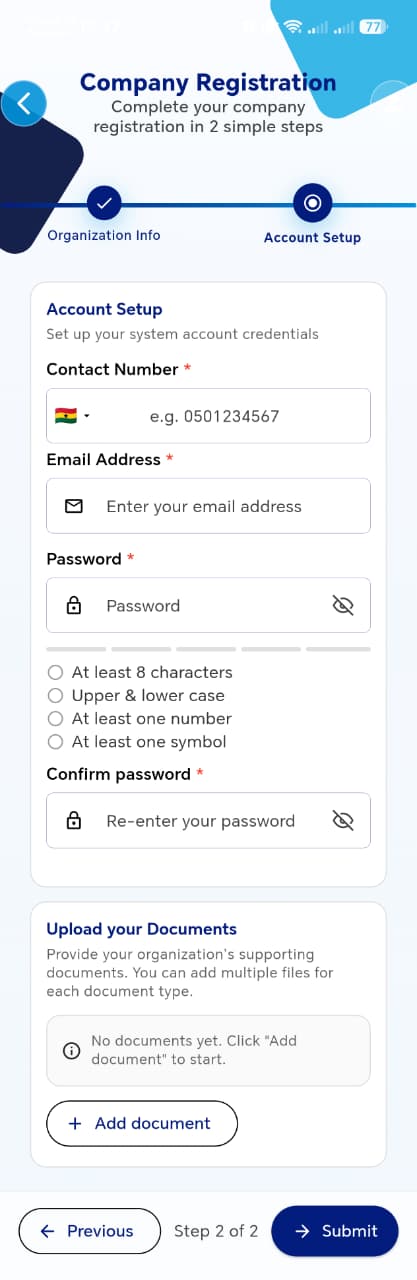
| Field | Required | Notes |
|---|---|---|
| Contact Number | Yes | Country code selector + number |
| Email Address | Yes | Required here — unlike the Individual path, where it's optional |
| Password | Yes | Same 4-rule strength requirements as Individual |
| Confirm Password | Yes | Must match Password |
A separate Upload your Documents section follows, for the organization's supporting documents:
- Shows "No documents yet. Click 'Add document' to start." until a file is attached
- + Add document lets you attach multiple files per document type
!!! tip "Things to check" - Email is actually enforced as required here (confirm it blocks Submit if left blank, unlike Individual) - Document upload accepts multiple files per document type, and multiple document types - Submit correctly creates the organization account and, like the Individual path, moves the user to the expected next screen
Cross-cutting Notes
!!! info "Compare the two paths" - Individual: Email optional · Company: Email required - Company registration includes a document upload step; Individual does not - Both share the same password rule set and the same Contact Number format